The creation of any Xobuya transaction always begins with the client. At the top left of the home screen is the "Search" (magnifying glass) icon – tap it and then begin typing a name to search.
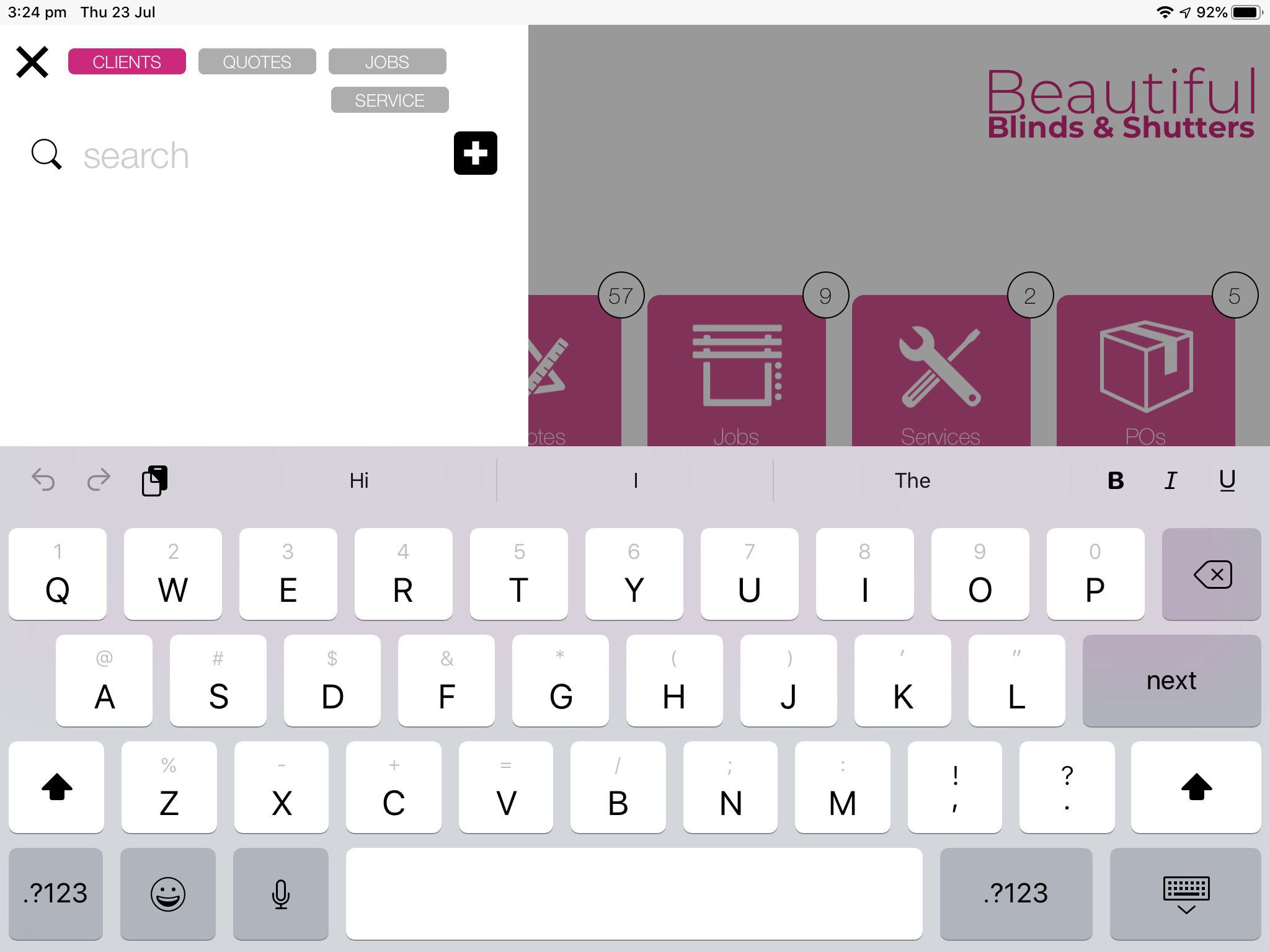
If the name already exists in the database, you will see detail appear below the search criteria.
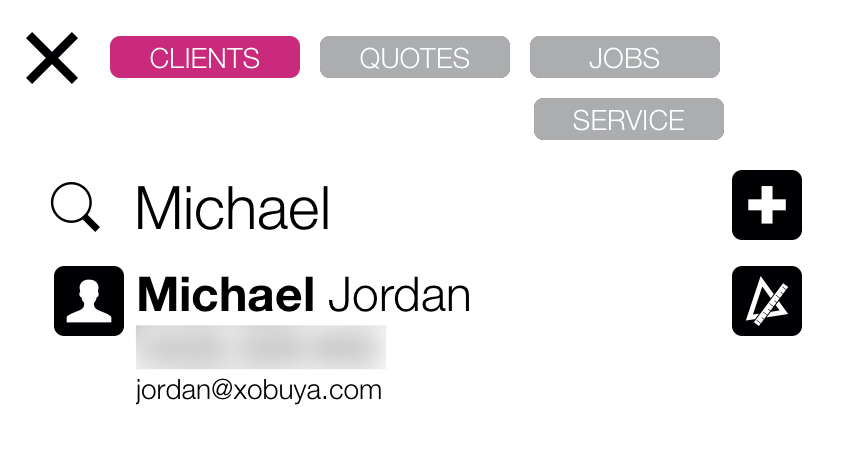
Tapping on the name displayed will take you directly to that client's details. Tapping on the "Quote" icon will start a new quote for that client – more on this in Creating a new quote.
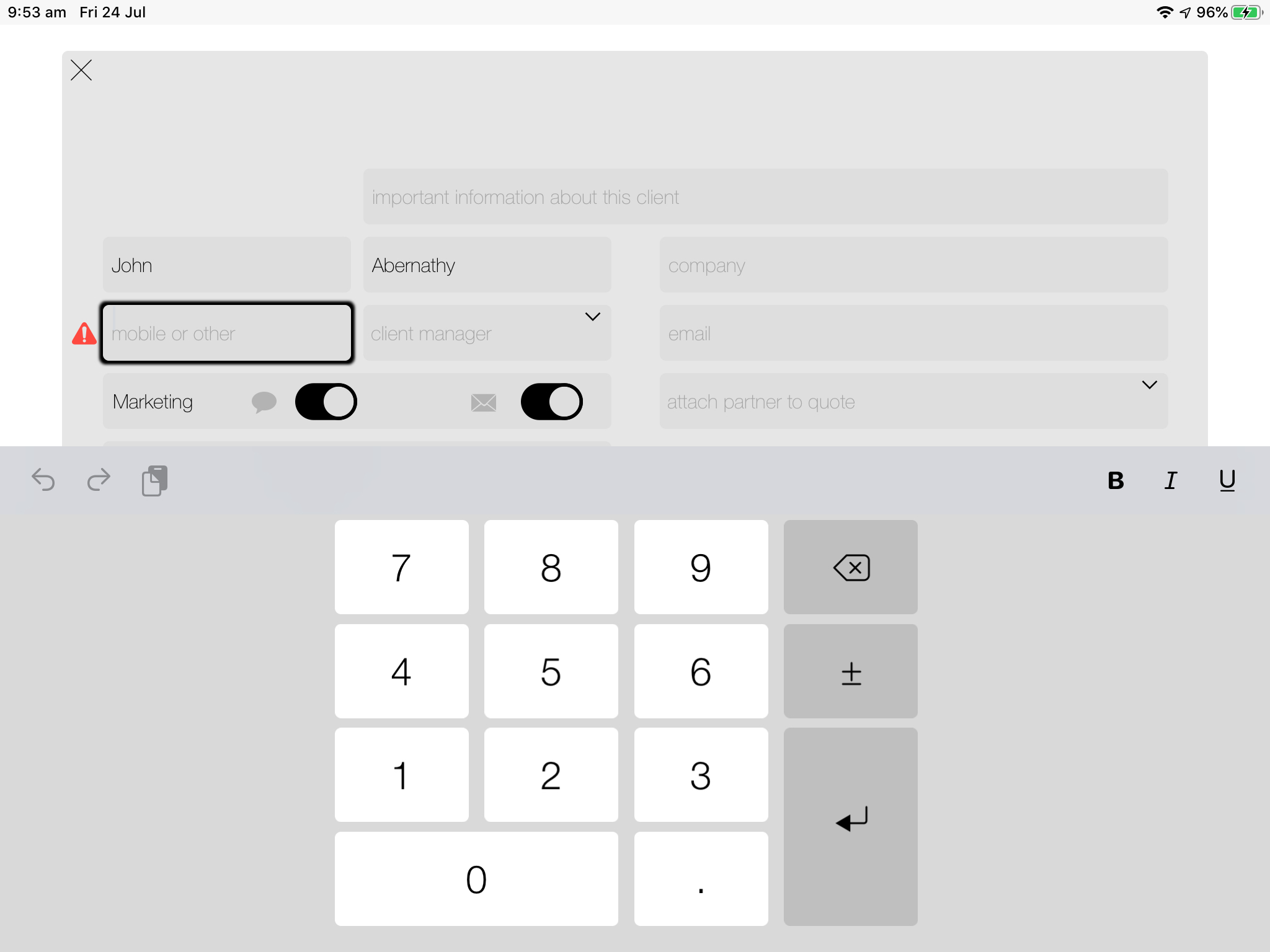
If entering a client's name does not return any results, tap the '+' icon to add a new client – you will then be asked for confirmation and then see this screen if you tap yes. Note the name is already completed and you are prompted for a mobile number, which is required to send a SMS.
As you step through the fields, you will notice the buttons across the bottom of the screen become solid black as the criteria is met for their operation.
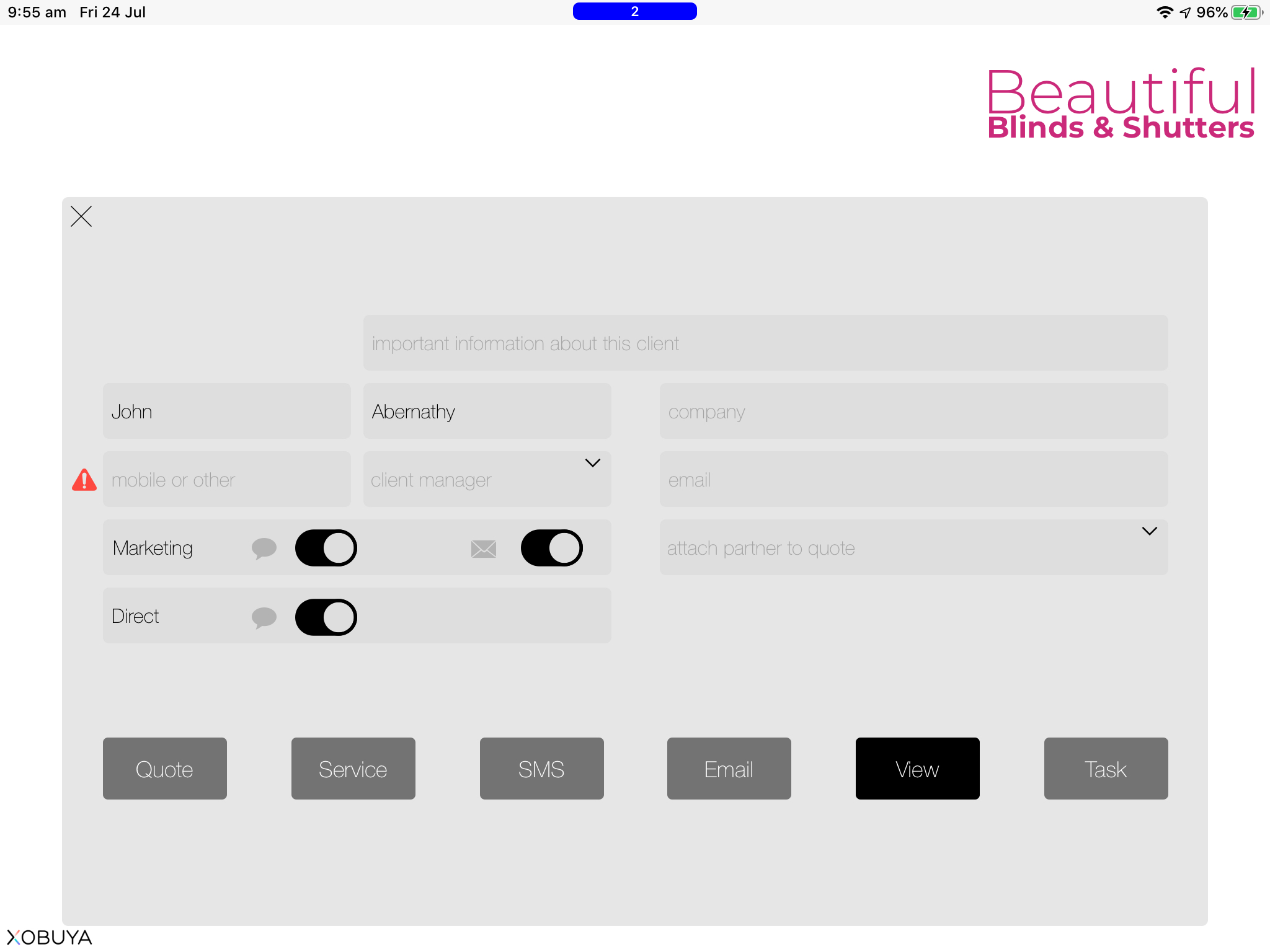
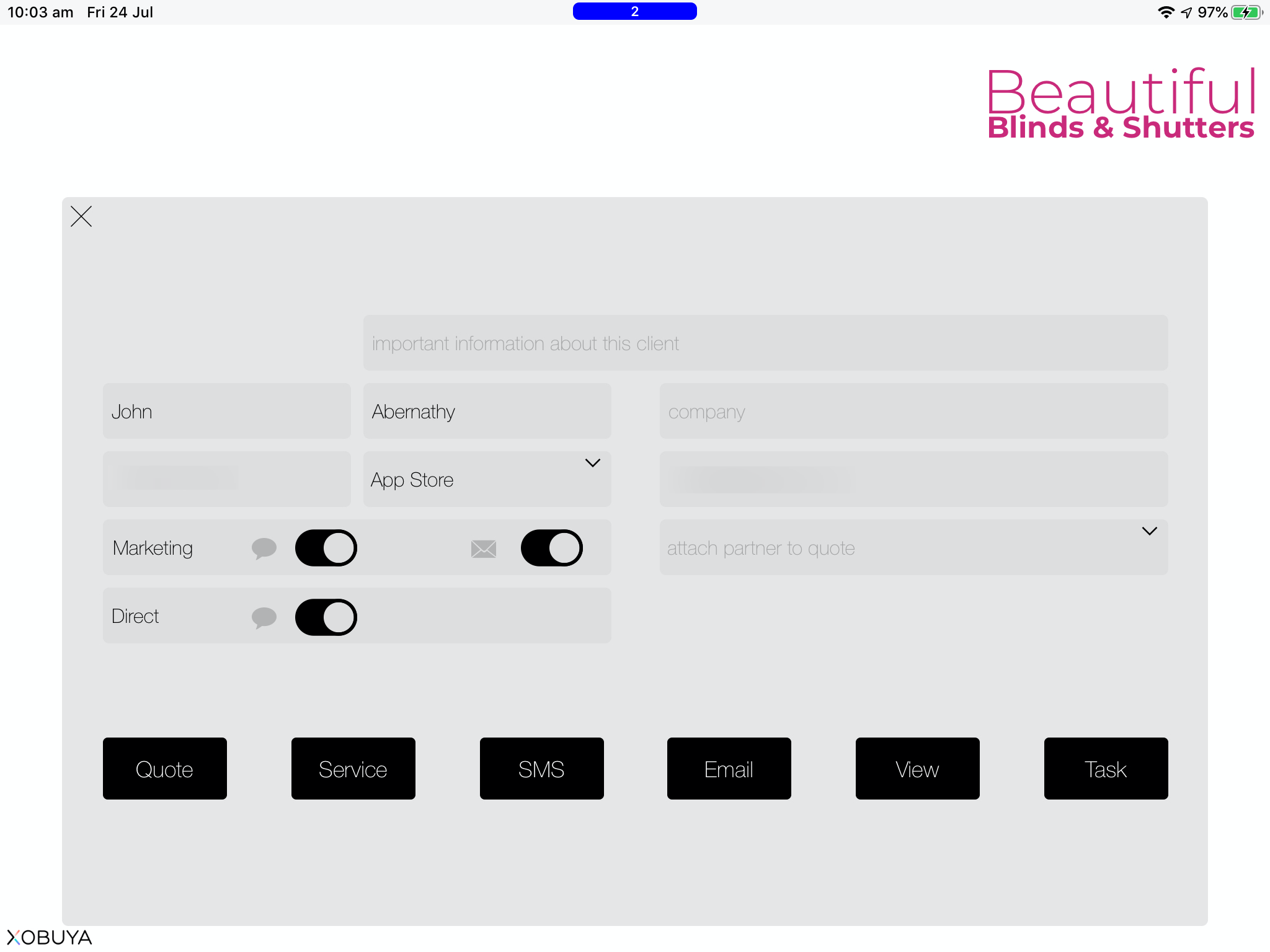
Complete the remaining fields as required.