A plugin is a small sub-program which, once installed, works in conjunction with FileMaker Pro to extend its functionality.
Occasionally, some plugins will require an upgrade. You should receive a notification on startup if an upgrade is required. The Xobuya app will ask you for your email address so a new plugin can be emailed to you. Type in your email address and click Ok.
Once received follow these directions:
- Drag the plugin to your desktop. This is a compressed (zipped) file.
- Double click the file to extract the plugin.
- Launch Filemaker
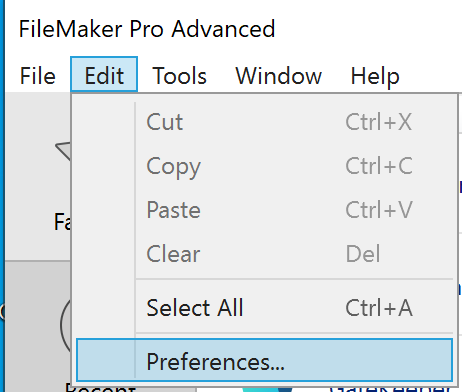
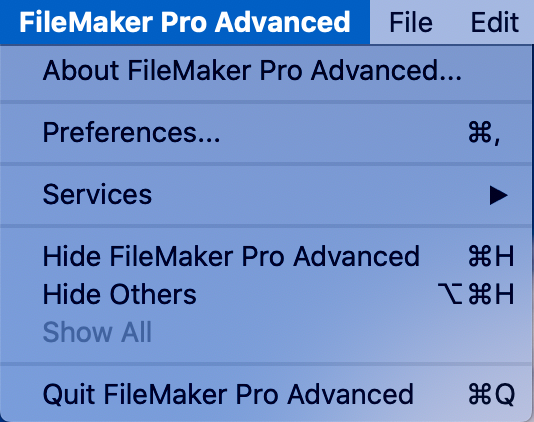
- Open the Preferences as follows:
- For Windows, select Preferences from the Edit menu
- For Mac, select Preferences from the FileMaker Pro menu
- For Windows, select Preferences from the Edit menu
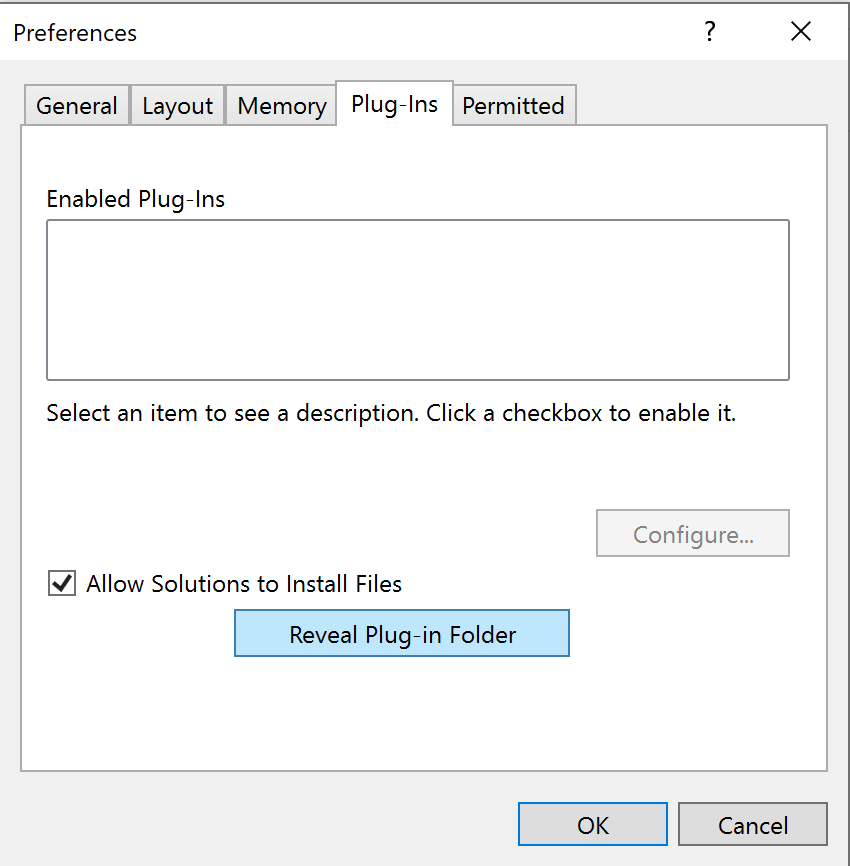
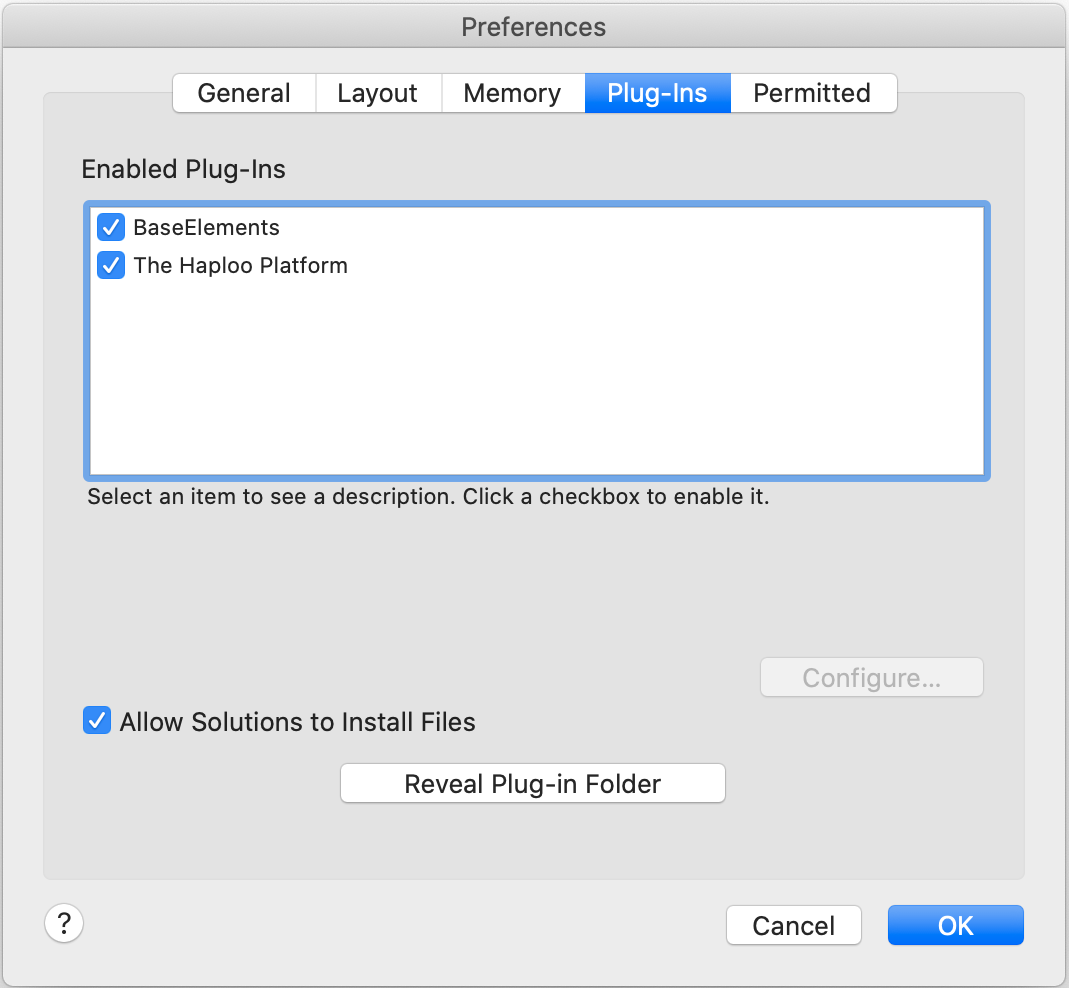
- Once the Preferences window is open, select the Plug-Ins tab and click the button marked Reveal Plug-in Folder
- Windows
- Mac
- Windows
- Once the Extensions window is open, remove the old plug in by dragging it to the trash, and drag the new uncompressed plugin into the Extensions window.
- Quit and Restart Filemaker, and then log back into Xobuya.