As you will begin to see, most actions in Xobuya start with the client. To start a new quote, first search for the client to check if they already exist, if not create a new one (as outlined in this article Searching/creating clients).
Once the client has been found or created, tap the "Quote" icon at the right of the search bar, or if in the client detail record, tap the quote icon in the bar on the right of the screen. You should see the following screen:
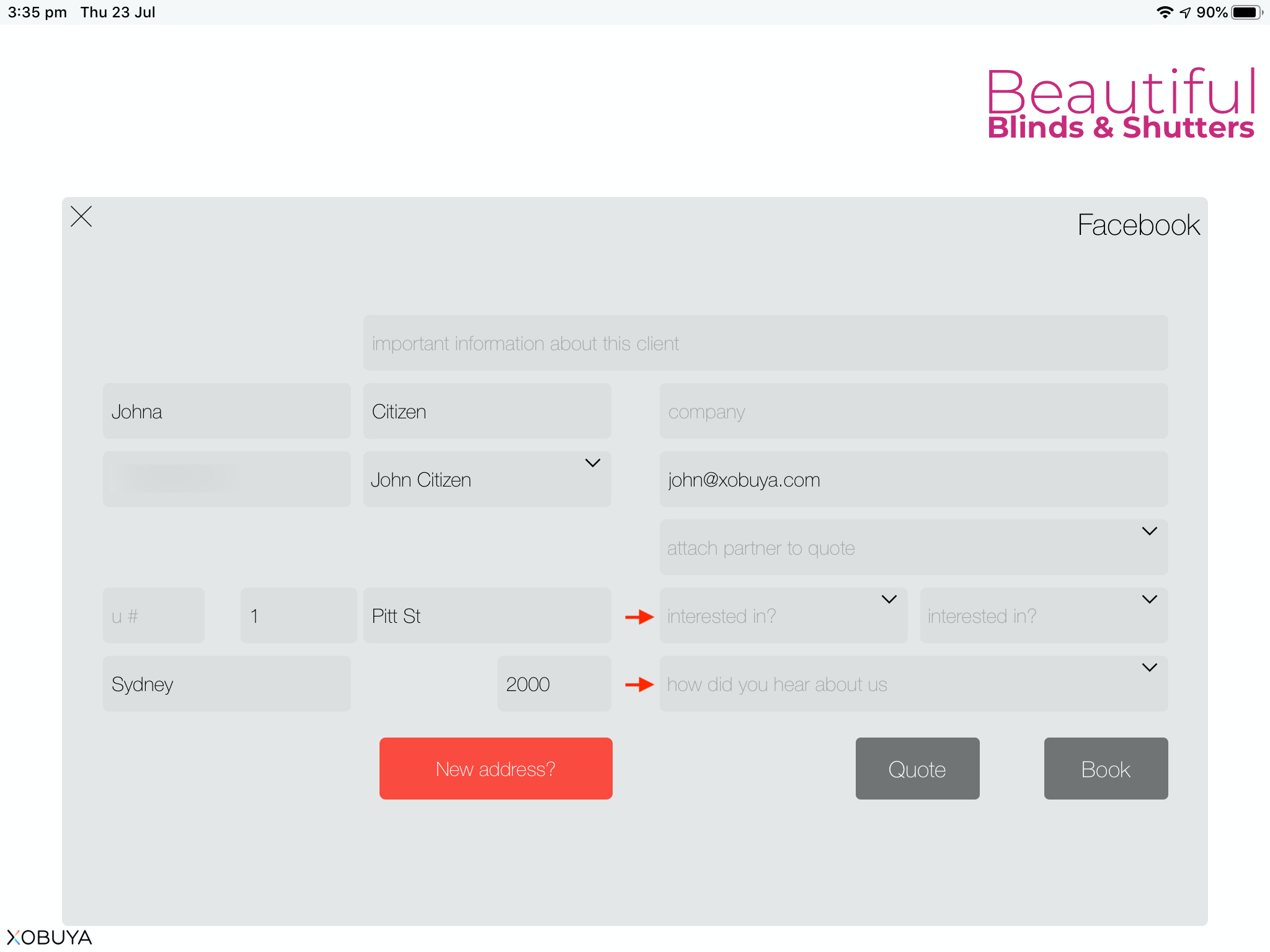
Note: any required fields that are empty will show a red arrow indicating they need to be completed before the "Quote" or "Book" buttons become available (when ok to proceed, these will show as solid black).
- To continue building the quote, click the "Quote" button; or
- To create a booking, click the "Book" button (see Creating a booking).
Creating the Quote
After clicking on the "Quote" button, you will proceed to the quote details screen.

You will note the following mandatory items are indicated by red arrows:
- Line items
- Check Measure
- Electrical
- Install Time and Personnel levels
When adding a line item to the quote, details are set as follows:
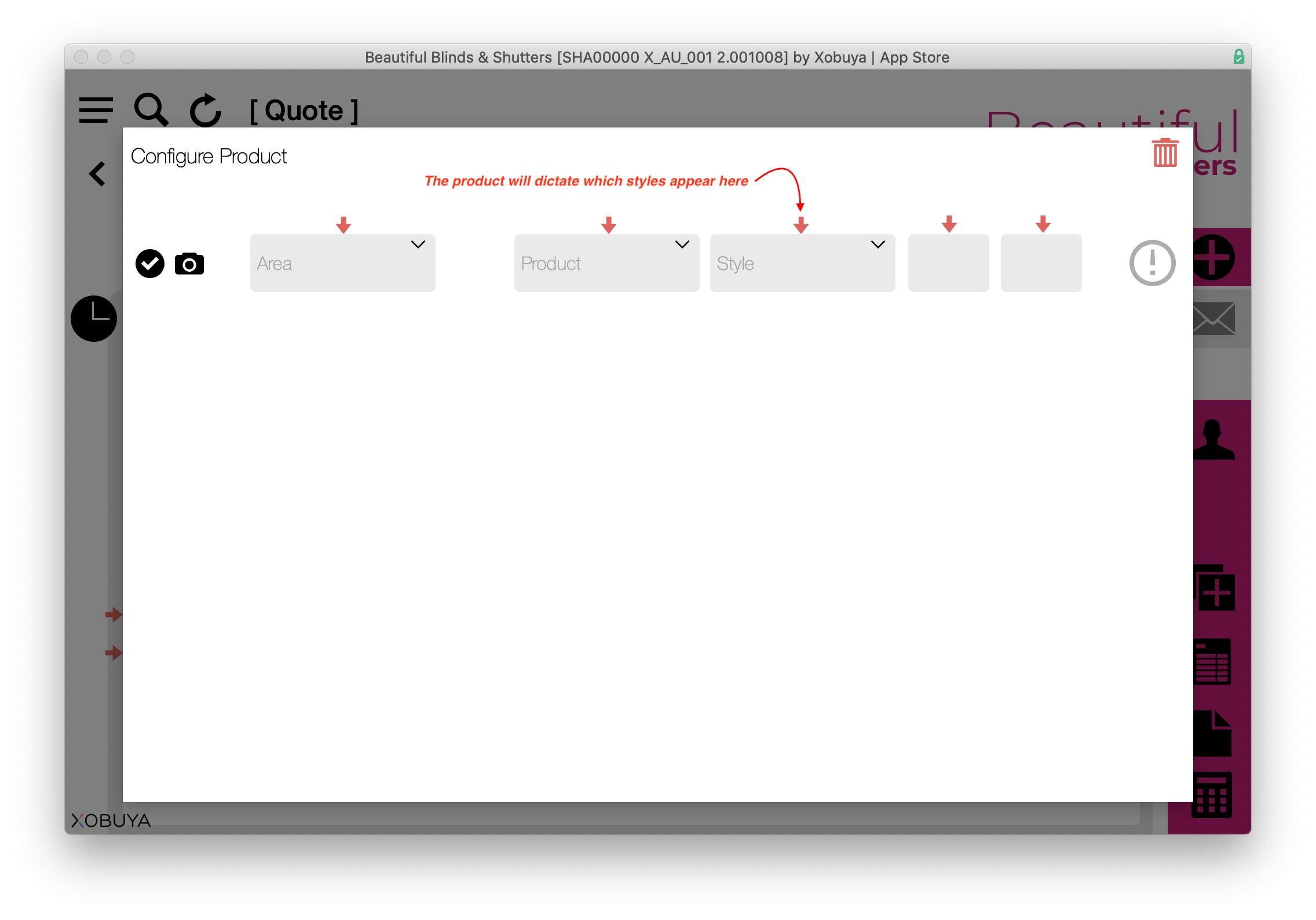
- Area: is the location in the property where the item is to be installed
- Product: select from the dropdown
- Style: variations dictated by the product
- Measurements: dictated by the product type and style (below)
- (For more information on product configurations see Configuring Products)

Once the line item measurements are entered, you are taken to the product configuration window. Enter product details as required and when all options are selected, click the price button to price the product for the line item. Once completed, click the 'Tick' icon at the lower right of the window.


Depending on the type of product, or if this is a custom product, complete as directed.
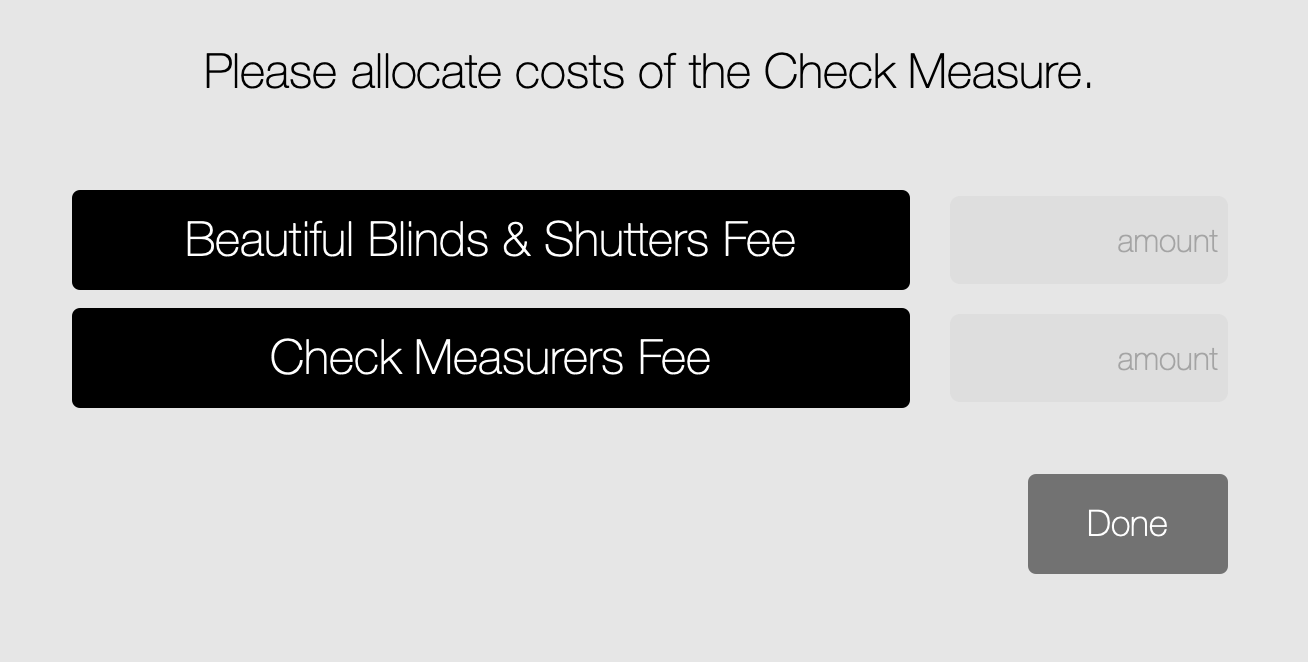
If a check/measure is required complete the following screen and click "Done".
If an Electrician is required, complete the following screen and click "Save".

Once all mandatory quote items are complete, click the "Mail" icon to send the quote (you will be alerted if any mandatory items are not completed). The completed quote will be sent via your email mail client, where you can add comments and view the PDF if you choose.
The system will then prompt you to confirm the quote email as sent, and then display a prompt to SMS the quote.
The quote is now sent and locked.
Next section – Accepting or declining a quote